- Maximum number of tags per resource—10
- Maximum key length—127 Unicode characters in UTF-8
- Maximum value length—255 Unicode characters in UTF-8
- Tag keys and values are case sensitive.
- Do not use the
aws:prefix in your tag names or values because it is reserved for AWS use. You can't edit or delete tag names or values with this prefix. Tags with this prefix do not count against your tags per resource limit. - If your tagging schema will be used across multiple services and resources, remember that other services may have restrictions on allowed characters. Generally allowed characters are: letters, spaces, and numbers representable in UTF-8, plus the following special characters: + - = . _ : / @.
- Service - Identify the service/product - must be unique
- Owner - Owner email address
- SupportTeam - Group email address of team supporting the service
- Environment - Prod/Dev/SIT/UAT/PreProd/DR
- BUCC - Business Unit : Cost Centre (for example: Human Resources:12345)
- CostSavings - A tag dedicated to cost savings such as AWS Scheduler
CostSavings (Schedule:S:M:T:W:T:F:S:
- email report to devops including Cloudtrail details of who created the resources.
- automatically tear down any resources that do not have business approved project tags. After initial pain and devops education, devops teams will learn to request tags for business approved projects.
Which tags are currently being used in EC2?:
export AWS_DEFAULT_PROFILE=<account>
aws ec2 describe-instances | grep '"Key":' > temp.tags
for i in `cat temp.tags | sort | uniq | cut -d'"' -f4`; do echo -n "$i,"; grep $i temp.tags | wc -l; done | sort -t, -k2,2nr
To tag EC2 resources:
aws ec2 create-tags --resources <resource-id> --tags Key=Mytag1,Value=$t1 Key=Mytag2,Value=$t2
Let’s say I want to find and then tag all of my EC2 resources. The first step is to open up the Tag Editor and search for them:
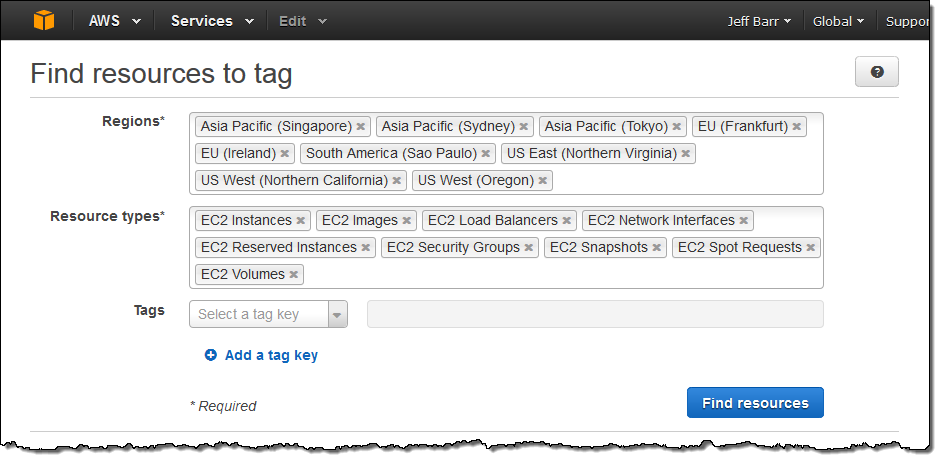
The Tag Editor searches my account for the desired resource types across all of the selected Regions and then displays all of the matches:
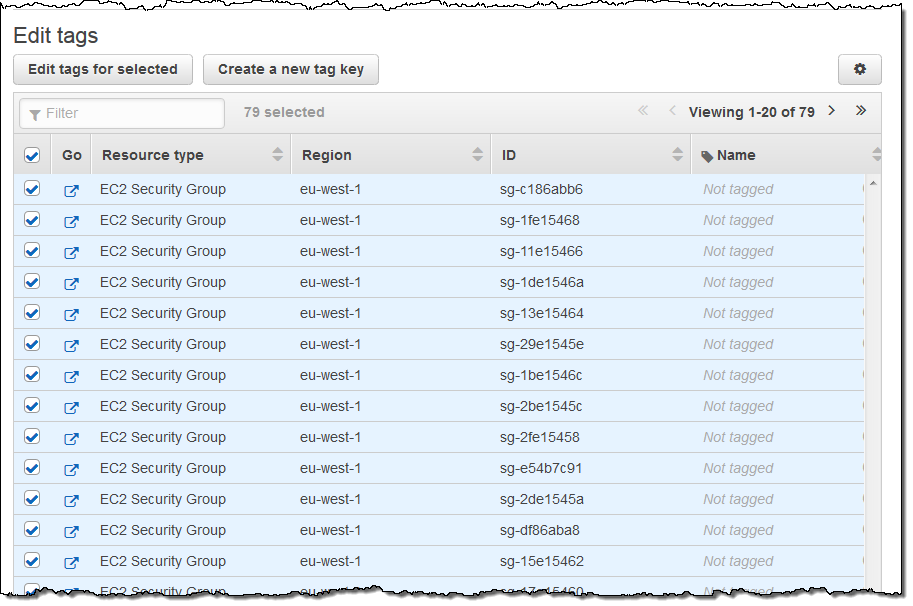
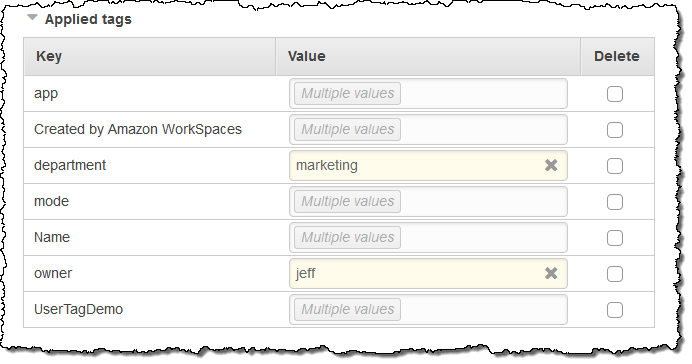
I can then select all or some of the resources for editing. When I click on the Edit tags for selected button, I can see and edit existing tags and add new ones. I can also see existing System tags:
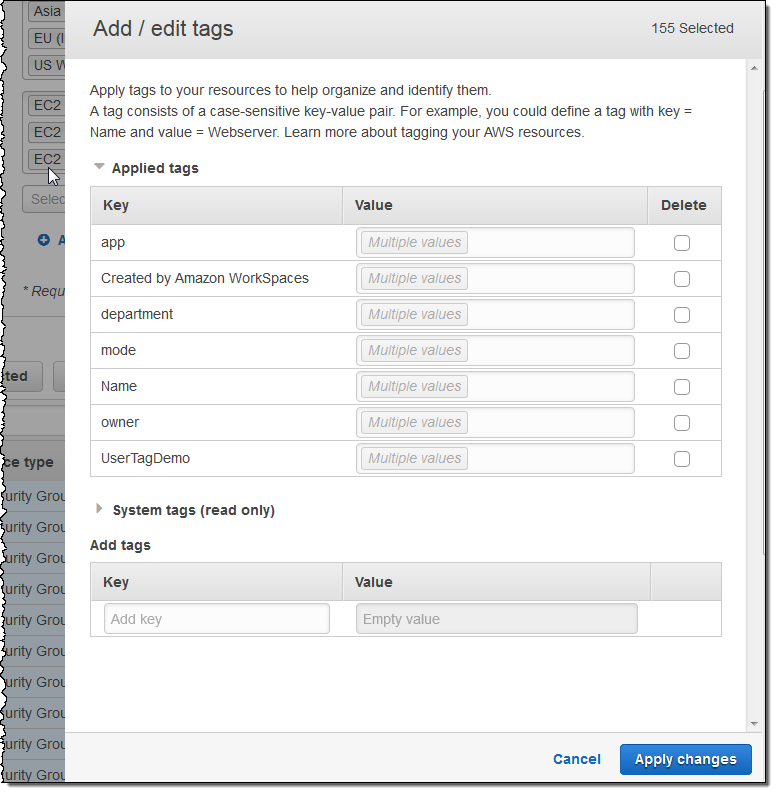
I can see which values are in use for a particular tag by simply hovering over the Multiple values indicator:
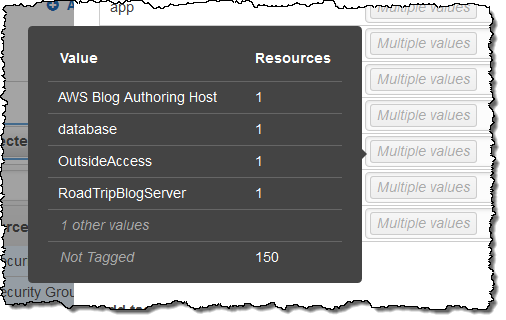
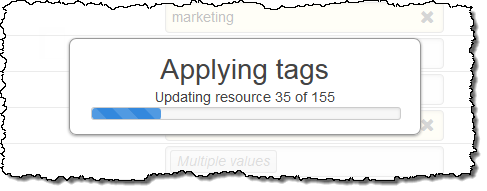
I can change multiple tags simultaneously (changes take effect when I click on Apply changes):
To automate tagging for dependent AWS resources use open source Grafitti Monkey. By looking at the tags of an EC2 instance, it copies those tags to all attached EBS Volumes and copies those tags to the EBS Snapshots as well. This small automation reduces hours of manual labor on large AWS deployments, helping us efficiently manage our cloud infrastructure and reduce the cost leakages.
Update 16/8/2016: Can now have 50 tags per resource:
https://blogs.aws.amazon.com/security/post/Tx3O5RCX34VOGY6/Now-Organize-Your-AWS-Resources-by-Using-up-to-50-Tags-per-Resource
No comments:
Post a Comment